
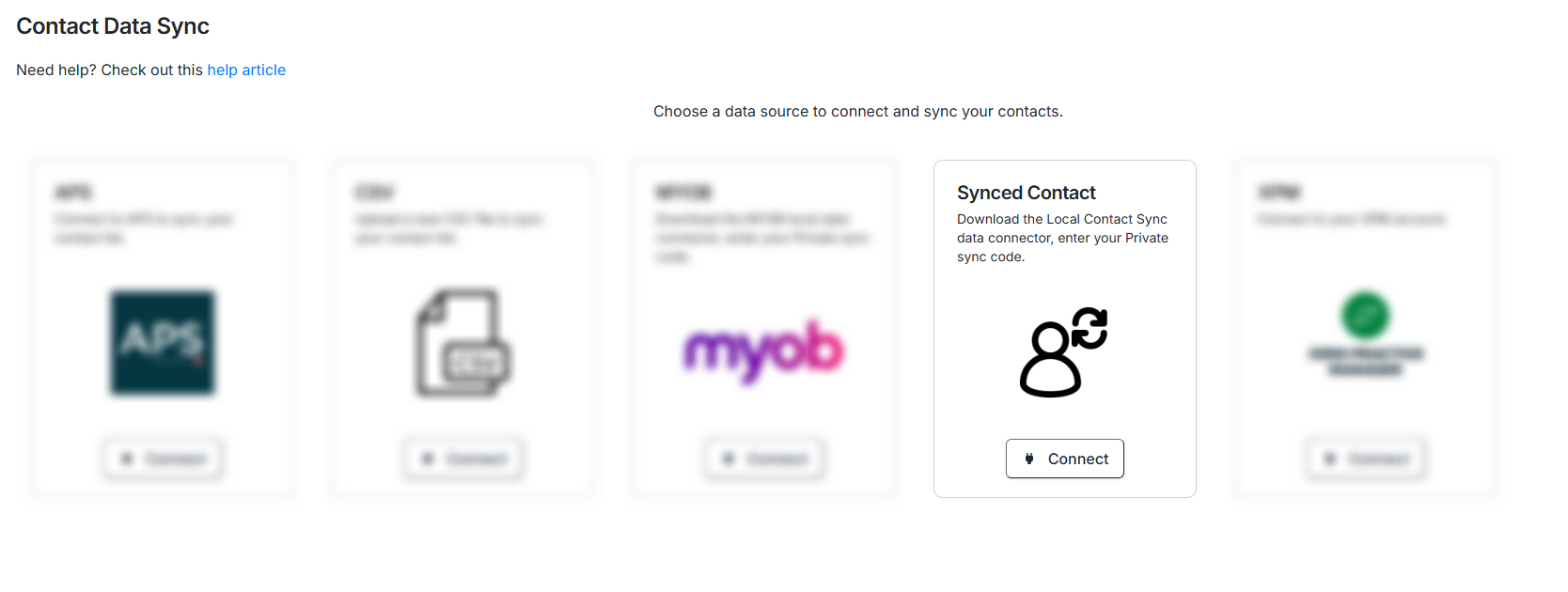
The FuseSign Practice Connector (Local Database Contact Sync) allows you to sync contact data from your local SQL practice management database into FuseSign. Once configured, contacts stored in your practice system will automatically import into FuseSign so you can quickly populate signer lists without manual entry, and run automatic syncs hourly to ensure your data stays up to date.
This is ideal for practices using locally installed practice management systems who want a reliable, secure way to keep contact information up to date in FuseSign.
Supported Practice Management Systems
Depending on your internal settings and licence, the Practice Connector may be able to support contact sync from:
-
IRIS (local SQL)
-
CCH Central (local SQL)
-
APS On Premise (local SQL)
-
MYOB AE & AO (local SQL)
-
Other (Other applications with a SQL database can be explored)
How the Connector Works
The FuseSign Practice Connector runs locally on your server and connects to your practice management SQL database. Contact records are read from the source database, processed, and submitted to FuseSign on a regular schedule so your contact list remains up to date.
Configuring the FuseSign Practice Connector
To enable the FuseSign Practice Connector:
-
Contact your FuseSign Account Manager or email support@fuse.work to request activation.
-
Book a setup session with FuseSign Support.
-
Ensure an attendee from your firm has server administrator access during the setup call, as installation and configuration will occur on your local server.
-
FuseSign Support will configure the connector and confirm successful contact synchronisation.
The FuseSign Practice Connector may not be compatible with all practice management configurations or local security environments. During the setup session, the FuseSign Support team will assess your system and confirm whether the connector is suitable for your practice before proceeding.
Cost-free configuration of the FuseSign Practice Connector is available for Business plans and above.
Prerequisites
Before enabling the Practice Connector:
-
You must have admin access to FuseSign and entitlement to use practice sync.
-
Your local server must have access rights to the practice management SQL database.
-
IT support may be required to install local services or connectors.
-
Ensure contact data in your practice system contains valid email and phone fields.
-
Local firewall and network policies must permit outbound connections from the connector host to FuseSign.
Automatic Updates
The Practice Connector Sync feature will sync your database contacts to your FuseSign contacts automatically every hour.
Related: Read more here to understand the Contact Data Sync record update logic.
Contacts on Active Bundles: Contact details will update for contacts on active bundles. If an email address has changed you will need to trigger a reminder to resend the bundle to the correct email address. If a mobile number has changed then the recipient can use their existing bundle link and continue as usual.
Data Sync Paused
You can check the last sync date on your data by going to the Settings section on the side navigation bar accessible from any screen in FuseSign, then select Contact Data Sync.
If the sync date is older than a day, ask your IT team to check that the FuseSignLocalSyncTool service is running on the database server. If the service is running, but data is not syncing, your IT team will need to restart the service, and check the event logs for any connectivity errors.
Missing Contacts
For a contact to be populated into FuseSign, it must have a full name, a valid email address, and a valid phone number.
You can retrieve a CSV file summarising any records which were not able to be imported by selecting “Download Sync Summary”.

Troubleshooting
If you need help, contact support@fuse.work with logs from your connector service and details about the source system.