
Sodium is a practice management platform built for accounting and bookkeeping firms. It helps teams manage documents, workflows, client approvals, task management and client collaboration from a single platform.
By integrating FuseSign with Sodium, firms can send documents for digital signature directly from Sodium, track signing progress, and automatically return signed documents to client records once completed.
Sodium Integration
FuseSign integrates with Sodium, allowing accounting firms to send documents for digital signature directly from within Sodium.
Once connected, documents can be sent for signature without downloading files or moving between systems. Signed documents are automatically returned to Sodium, helping maintain a streamlined workflow from document preparation through to final approval.
Connecting FuseSign to Sodium
-
In Sodium, navigate to Settings → E-Signature
-
Select the FuseSign integration
-
Sign in to your FuseSign account when prompted
-
Authorise the connection
-
Return to Sodium
Once connected, the integration is available across your practice. No additional configuration is required for individual users or clients. [sodiumhq.com]
Sending a Document for Signature
To send a document for digital signature:
-
Open the document within Sodium
-
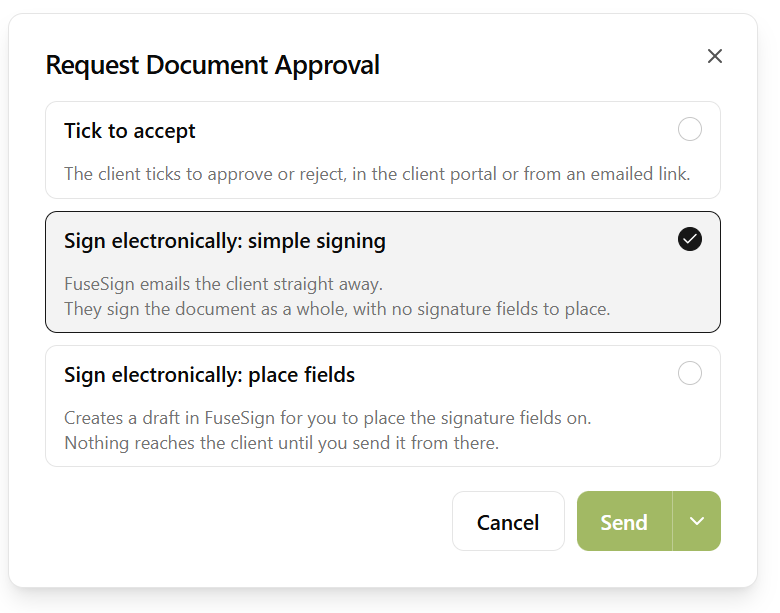
Select Request Client Approval
-
Ensure the document is visible within the client portal
-
Choose a signing method:
-
Sign Electronically: Simple Signing – Sends the document immediately through FuseSign. Client signs entire document with no placeholders
-
Sign Electronically: Place Fields – Creates a draft in FuseSign so signature fields can be positioned before sending
-
-
Select the recipients
-
Click Send
Tracking Signature Requests in Sodium
After sending a document for signature, progress can be monitored from within Sodium.
Document states include:
-
Awaiting Signature
-
Viewed
-
Signed via FuseSign
-
Client Rejected
What Happens Once the Bundle is Complete?
When all required signers have completed the document:
-
The document is marked as Client Approved
-
Any dependent Sodium workflow steps are completed
-
The signed PDF is returned to Sodium
-
The FuseSign audit trail is embedded within the signed document
-
Clients can continue accessing the signed version through the Sodium client portal
If the signing request is declined:
-
The document is marked as Client Rejected
If the signing request is retracted in FuseSign:
-
Sodium automatically updates the approval request to reflect the change.
Further Information
For detailed instructions on connecting FuseSign, sending documents for signature, tracking progress and using signing workflows within Sodium, please refer to Sodium's guide:
Sending Documents for Digital Signature
View Sodium's Digital Signing Guide