
When signing documents through FuseSign, recipients can submit their signature using one of three signature modes:
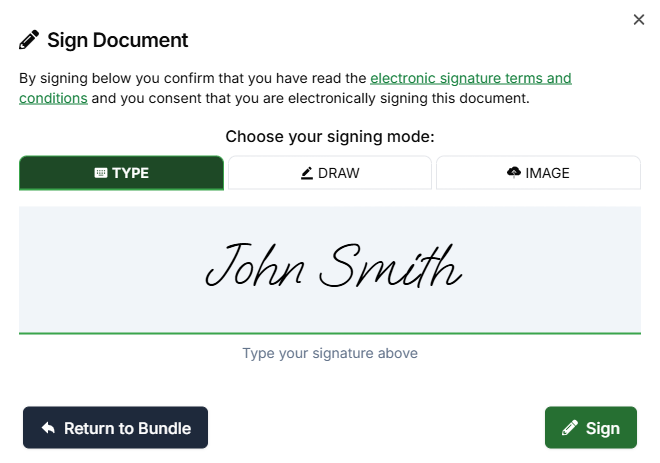
Type – Type their name to generate a stylised electronic signature.
Draw – Draw their signature using a mouse, touchpad, stylus, or touchscreen.
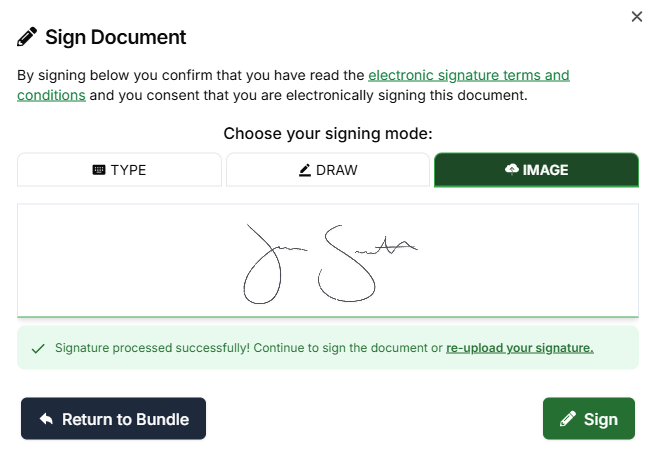
Image – Upload an image of their handwritten signature.
By default, recipients can choose from any signature mode that has been enabled for the bundle.
Once a recipient submits their signature for a bundle this cannot be changed. If a new signature is required, the bundle will need to be resent.
Typed Signatures
The Type signature mode allows recipients to type their name, which FuseSign automatically generates into a stylised electronic signature.
This option is ideal for recipients signing on devices without a touchscreen or for those looking for the quickest signing experience.
Drawn Signatures
The Draw signature mode allows recipients to draw their signature directly onto a canvas within FuseSign using a mouse, touchpad, stylus, or touchscreen.
This option produces a hand-drawn signature and may be preferred when a more traditional signing experience is required.
Recipient’s who have previously drawn a signature will be able to re-use it by selecting Adopt Previous Signature
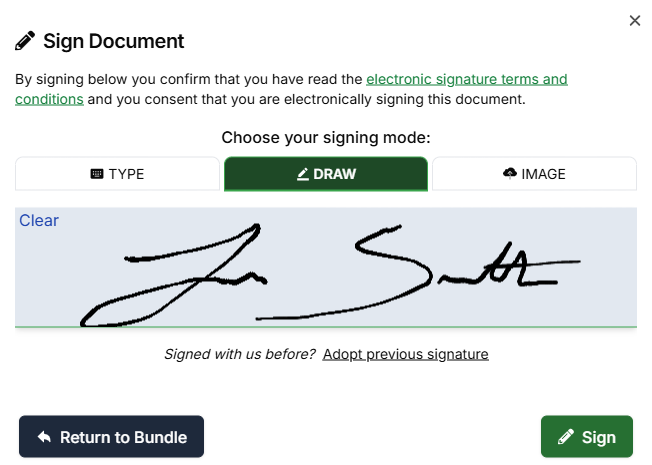
Image Signatures
The Image signature mode allows recipients to upload an image of their signature when signing a document. This option allows for the most accurate version of the recipient’s signature.
For instructions on preparing and uploading a signature image, please see: https://knowledgebase.fuse.work/FuseSign/how-to-upload-signature
Restricting Signature Modes
You can configure Signature modes on a per-bundle, allowing you to control which signing methods are available to recipients.
Restricting signature modes can be useful when a document requires a specific type of signature. For example, you may choose to disable Type and Image signatures if recipients must provide a handwritten signature using the Draw option.
All recipients on a bundle will be be affected by signature mode settings
-
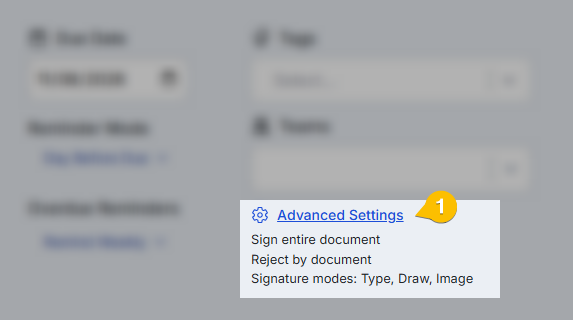
When creating a new bundle or looking at an Active bundle, select Advanced Settings
-
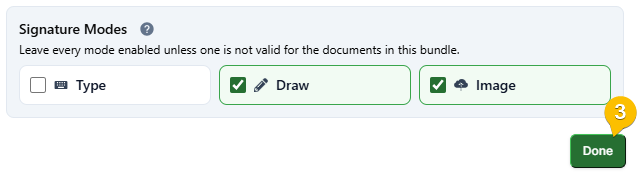
Under Signature Modes, enable or disable the signature methods you want to make available
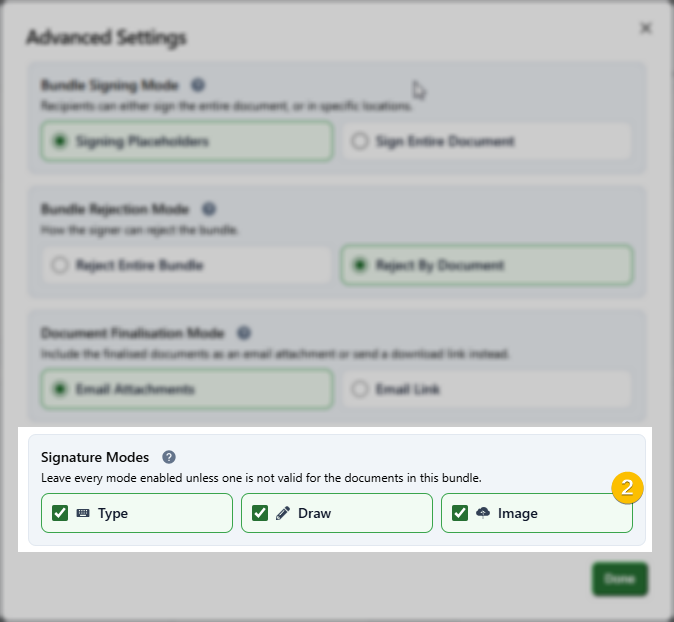
-
Select Done to confirm your changes
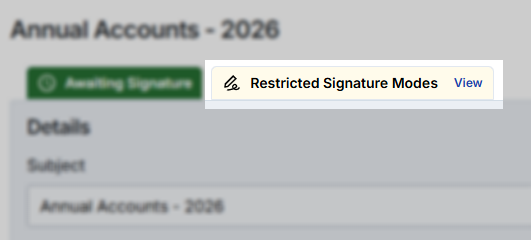
Any bundles that have restricted signatures modes will be identifiable by the tab at the top of the bundle page:
Frequently Asked Questions
Q: How can I tell what signature method a recipient has used?
A: This information can be found in the bundle audit trail. When a recipient completes a signature placeholder, a Document Signed event is recorded. The SignatureType value within this event indicates which signature mode was used:
-
SignedByName - Typed signature
-
SignedByCanvas - Drawn Signature
-
SignedByUploadedImage - Image signature