
Recipients now have the option to upload an image to use as their signature while signing documents through FuseSign. This guide will cover how to use this functionality, as well as best practice tips for capturing a signature.
Currently recipients only have the ability to upload a pre-existing image file to use as their signature. If taking a photo of a signature, this must be done outside of FuseSign and the file saved to the device the recipient is signing on.
How to Upload Signature
-
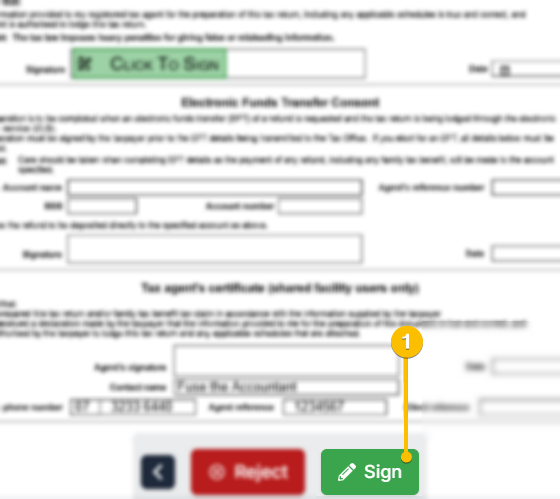
After you have reviewed your document(s), click the green Sign button to open the signature modal.
-
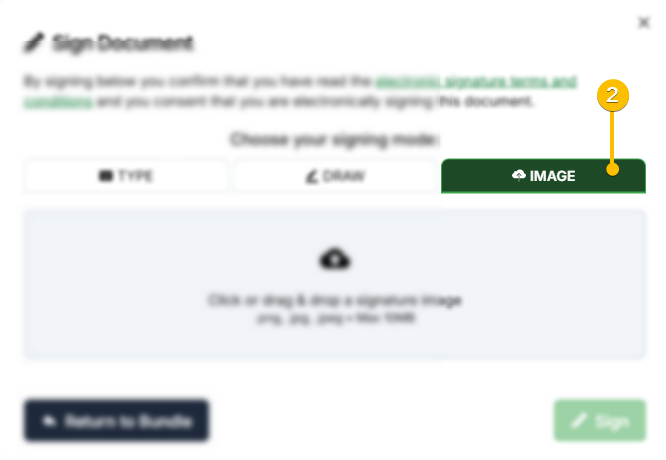
Click the Image tab.
-
Click into the highlighted area to open file explorer and choose your signature image. Alternatively, you can drag and drop an image file into this section.
Images files must be in .png, .jpg, or .jpeg format, and no more than 10MB in size.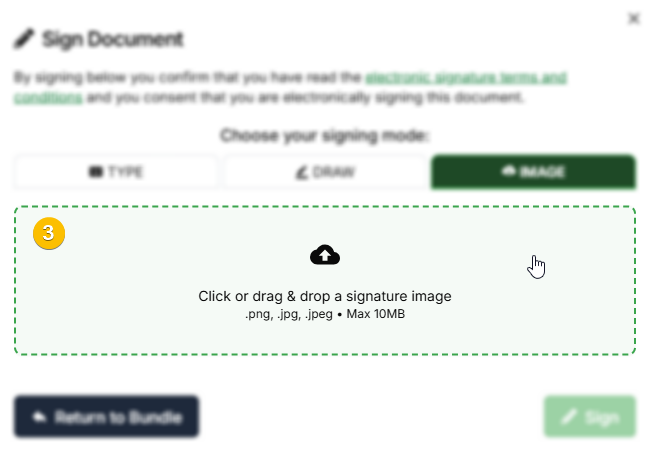
-
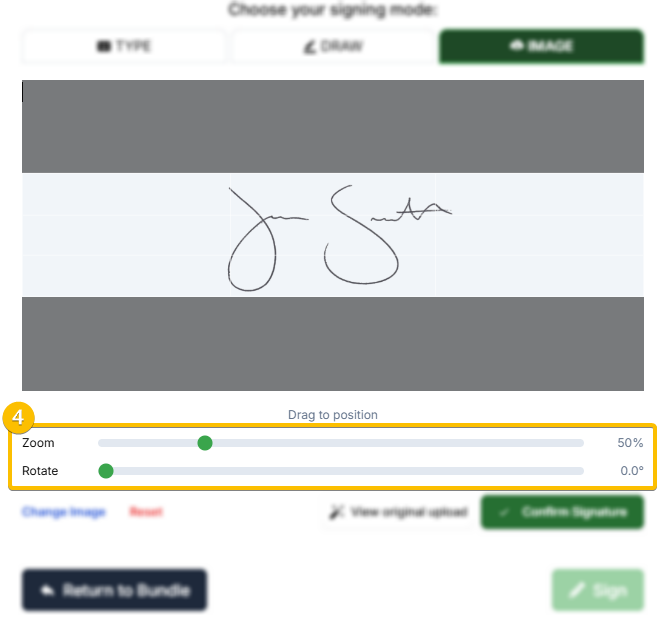
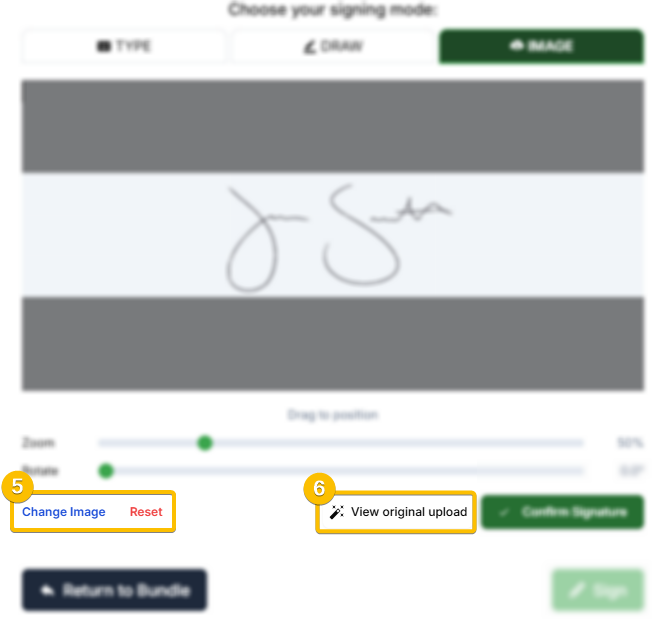
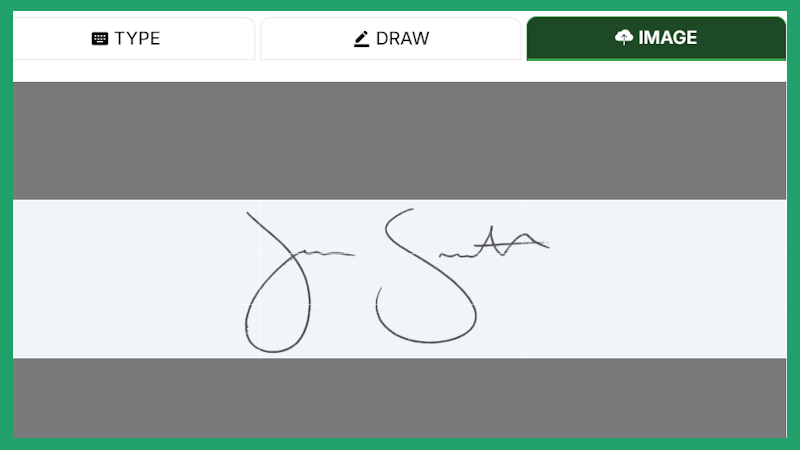
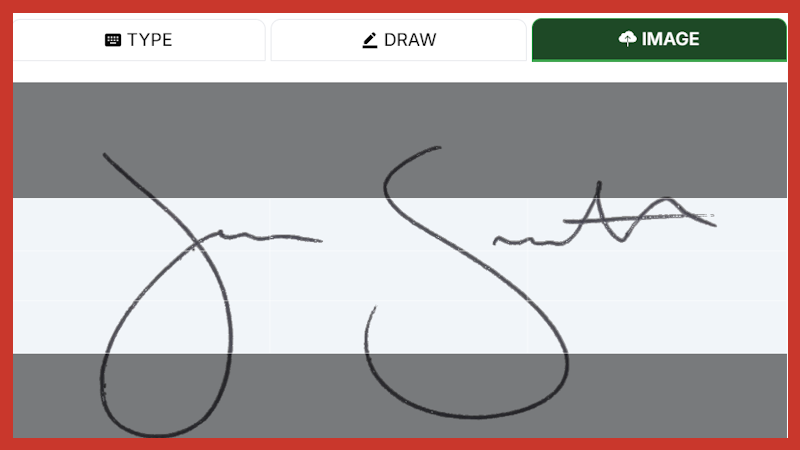
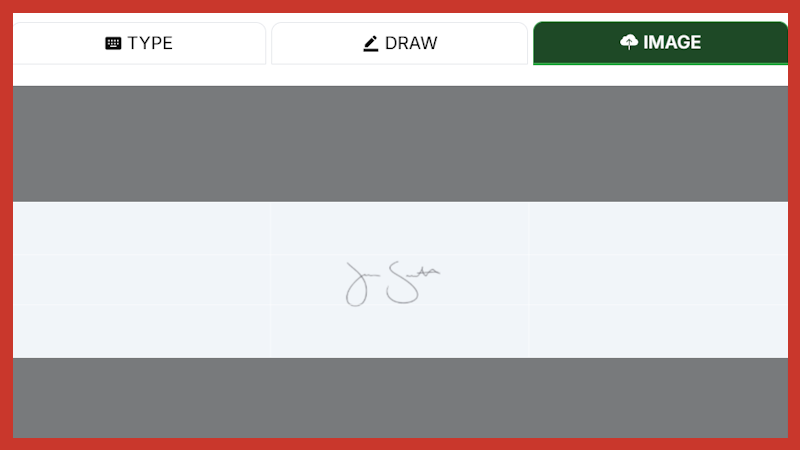
Position your signature image within the designated area. You can click and drag the image to position it, and use the Zoom and Rotate sliders to adjust as needed. Ensure the signature fills the light area with minimal whitespace. The grey area will be cropped from the image.
-
You can select Change image to select a new image to upload, or Reset to undo any changes you have made.
-
FuseSign will automatically adjust the brightness and contrast of the image for maximum clarity. You can click View original upload to revert these changes, if needed.
-
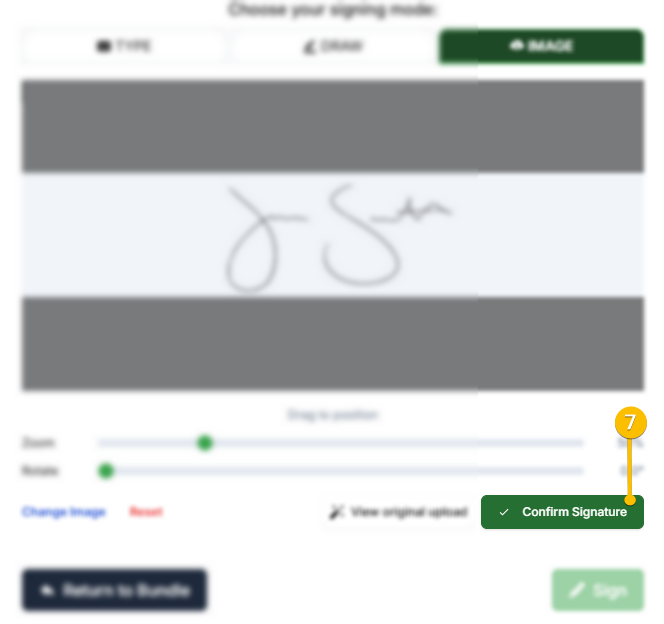
Once you are happy, select Confirm Signature to save the image.
-
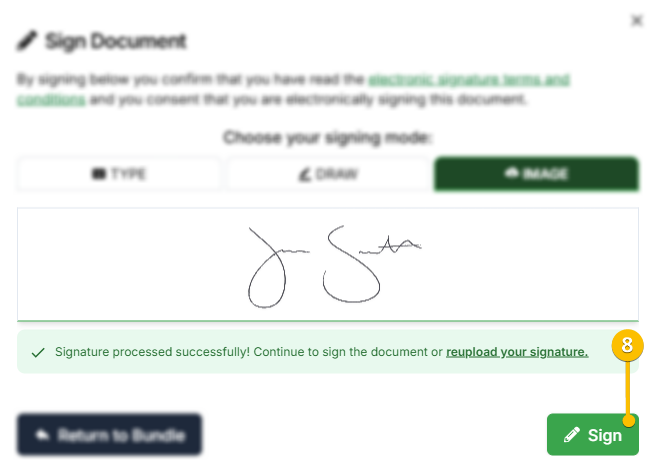
Finally, select Sign to submit your signature.
Signature photo guidelines
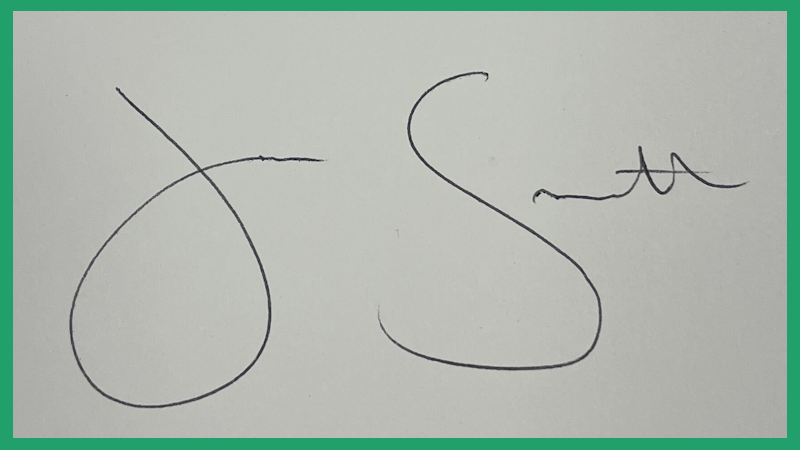
For best results, we recommend uploading a prepared signature image. However if you do not have one available, you can take a photo of your signature to upload.
For best results, we recommend that:
-
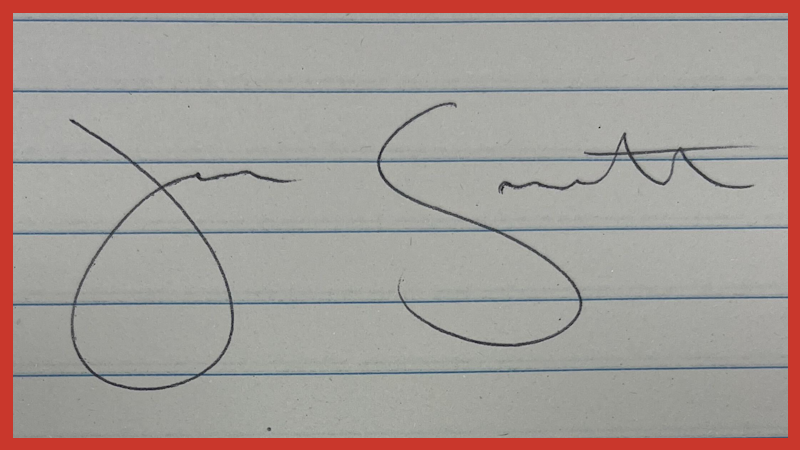
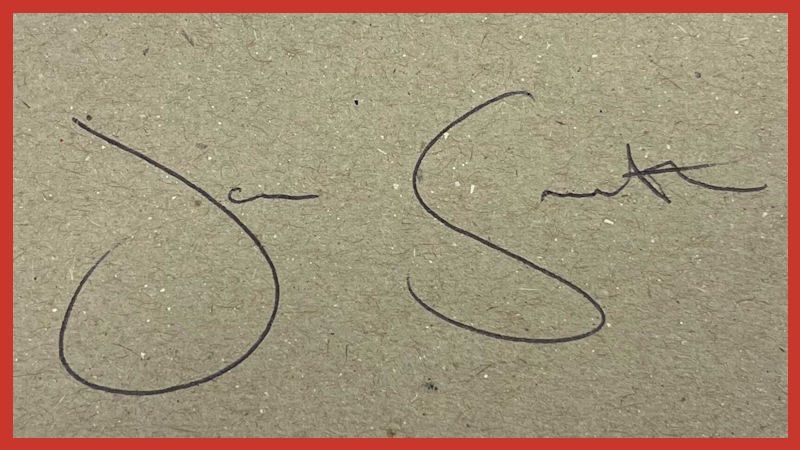
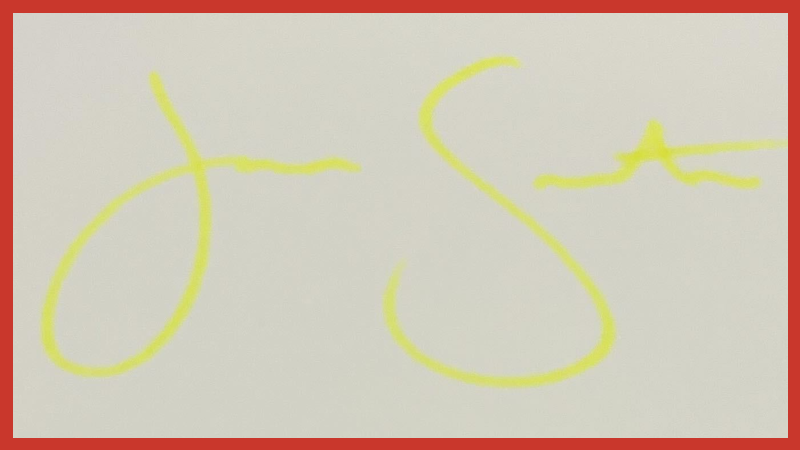
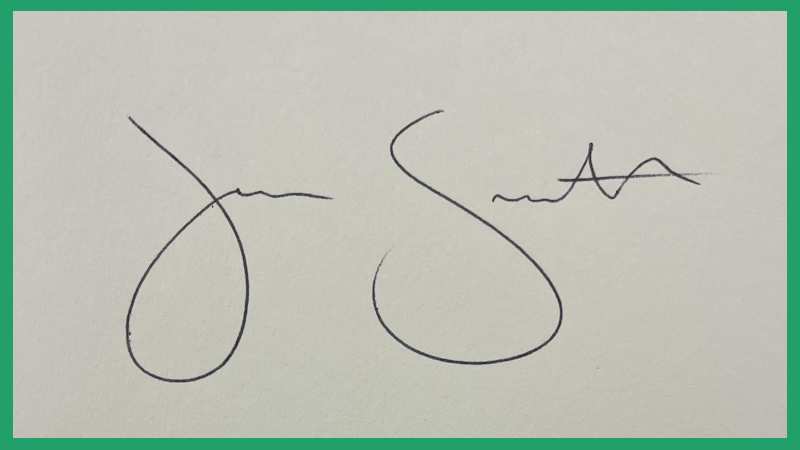
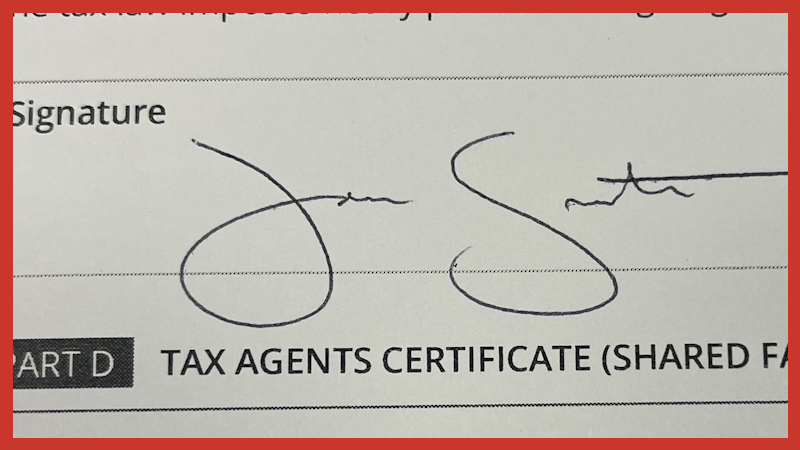
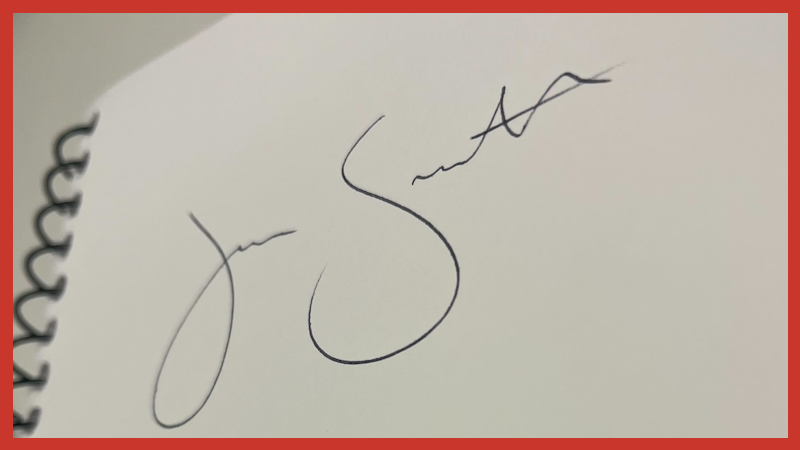
Signature is drawn on white, blank paper
-
Signature is drawn with dark ink
-
Photo is well-lit and signature is in focus
-
Photo is taken from a direct angle, perpendicular to the signature
-
When uploading, make sure signature fills the designated space without bleeding into the crop area
|
|
|
|
|

|
|
|

|

|

|
|
|
|
|
|


If you encounter any issues as a bundle signer, please contact the bundle sender as a first step.