
The Security and Privacy Dashboard centralises all FuseSign settings related to client and user security, privacy, and access control. It provides a single view of key configuration options to help you understand the impact of each setting before making important security decisions for your account.
These settings include recipient verification, notification and finalisation delivery methods, and privacy controls applied to signed documents.
Any changes made on this page are reflected across other settings pages that manage the same security and privacy options, ensuring consistent behaviour throughout FuseSign.
Recipient Verification
Recipient verification modes are configured per signer and determine what action is required for them to view or sign documents.
-
To View: Requires a security check before documents can be opened.
-
To Sign: Only performs the security check at the point of applying a signature.
As a result, To Sign verification allows recipients to view and download unsigned documents without completing a security check.
Available verification options include SMS code, Email code, or No 2FA. These options can be enabled or disabled by FuseSign Champions.
Verification modes determine the level of security required for individual signers to view and sign documents. Requiring additional security codes via SMS or email adds an extra authentication step to protect against unauthorised access. Lower verification levels may offer greater convenience for signers or enable access for signers who do not have a mobile phone.
For further information, please see: Recipient Verification
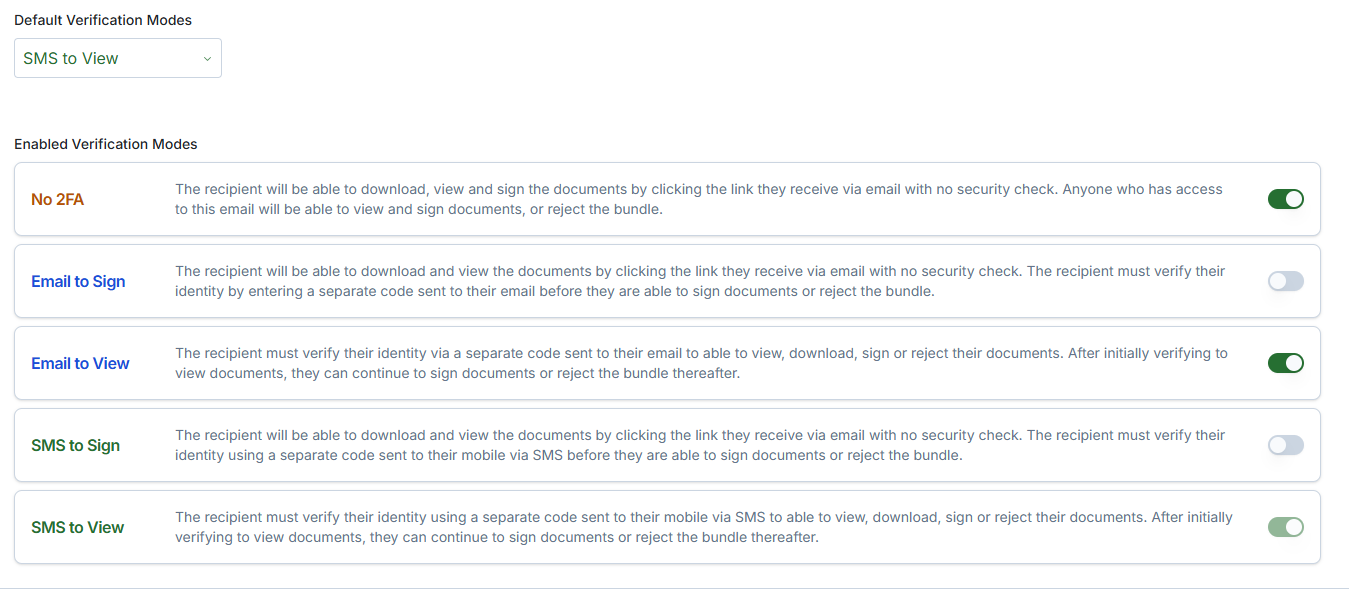
Default Verification Mode
The Default Verification Mode determines which verification mode is automatically applied to all recipients on all bundles.
Where a recipient does not meet the requirements for a verification method (e.g. the default is SMS verification and the contact record does not contain a mobile number) this will then default to the the next most secure verification method that is enabled for your account. This chain is as follows:
SMS to View → SMS to Sign → Email to View → Email to Sign → No 2FA
This ensures recipients can still access documents while maintaining the highest possible level of security.
Enabled Verification Modes
Allows you to control which verification options are available for your account. Only enabled verification modes can be:
-
Applied as the default verification mode, and
-
Selected manually when adding recipients to bundles
SMS Notification Signing Link
When sending an upfront SMS notification to recipients with documents to sign, your organisation can choose whether or not to include a direct signing link in the SMS message.
Including a signing link allows recipients to access the document bundle directly from the SMS on their mobile device. Excluding the link requires recipients to access the documents through an alternative entry point, such as an email notification or the FuseSign portal.
This setting allows you to balance signer convenience with security requirements, depending on your organisation’s verification policies and the verification mode for that particular recipient.
|
|
Including Signing Link |
No Signing Link |
|---|---|---|
|
Pros |
|
|
|
Cons |
|
|
Recipient Finalisation Email Mode
Finalisation Email Mode determines how recipients receive their signed documents once a bundle has been completed.
You can choose to:
-
Send signed documents as email attachments, or
-
Send a secure download link that requires the same level of verification used during the original signing process
This setting applies only to new bundles and does not change the behaviour of bundles that have already been created.
If signed documents exceed 8 MB, FuseSign will automatically send a download link regardless of the selected finalisation email mode.
|
|
Email Attachments |
Download Links |
|---|---|---|
|
Pros |
|
|
|
Cons |
|
|
Obfuscate Phone Number
The Obfuscate Phone Number setting controls whether recipients’ mobile phone numbers are partially hidden in the appended audit trail pages of finalised, signed documents.
This setting helps balance privacy protection with contact visibility, particularly when signed documents may be shared with third parties or stored in less controlled environments.
|
|
No Obfuscation |
Obfuscate |
|---|---|---|
|
Pros |
|
|
|
Cons |
|
|
MFA Security Settings
Multi-Factor Authentication (MFA), also known as Two-Factor Authentication (2FA), can be enabled for your FuseWorks login account to provide an additional layer of security.
When enabled, MFA requires users to complete an extra verification step when signing in, either by authenticator or email code, helping to reduce the risk of unauthorised access to your account.
MFA settings are managed by the account’s User and Licence Administrator. If you would like MFA enabled for your account, please contact your administrator to discuss available options.
For more information, see: Multi Factor Authentication (MFA / 2FA)