
In addition to typing and drawing their signature, recipients can now choose to Upload an Image to use as their signature when signing documents through FuseSign.
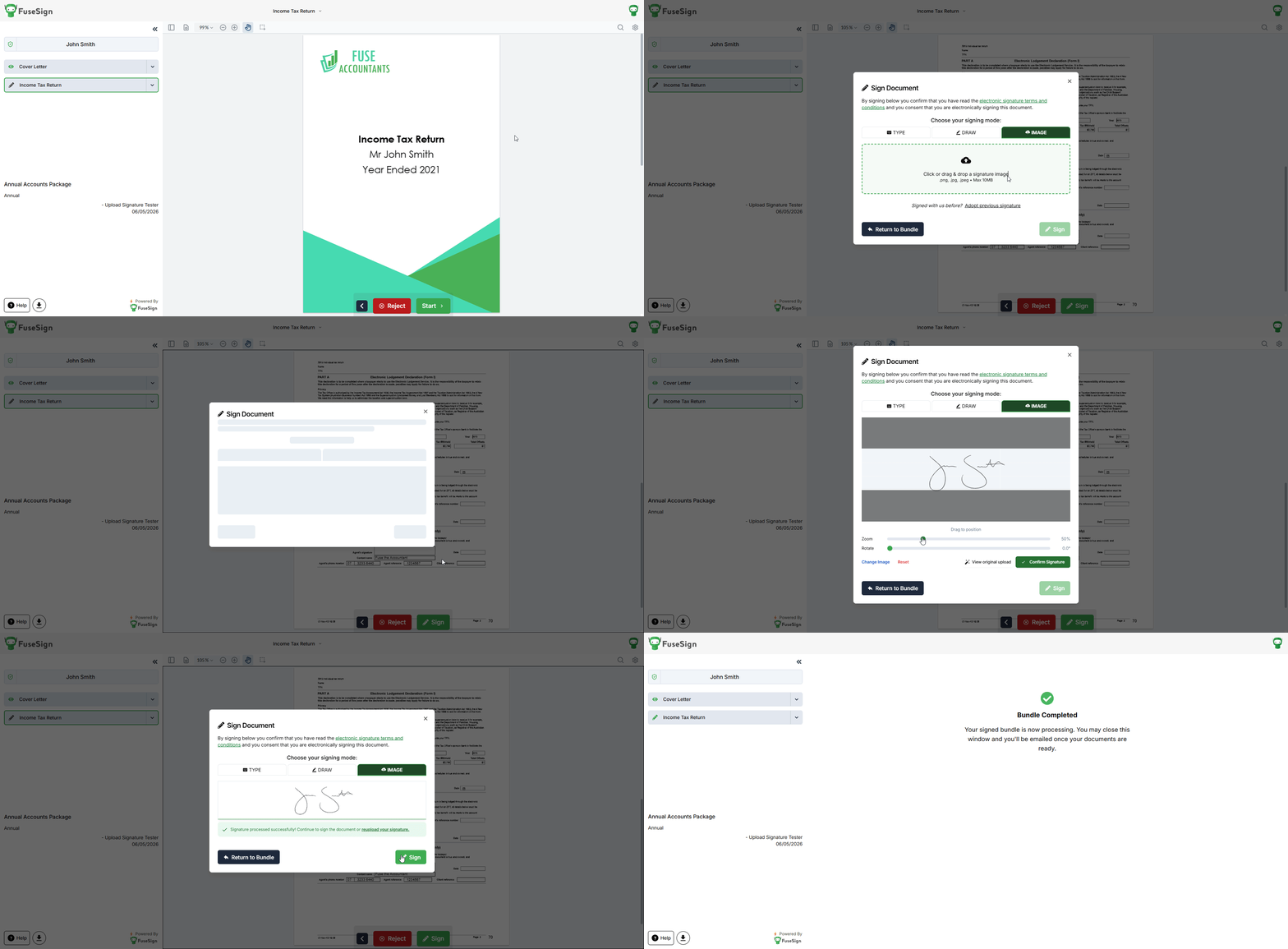
Requirements
Image files must be:
-
A .png, .jpg, or .jpeg file format
-
No larger then 10MB in file size
Photos of signatures
While a prepared, scanned signature image is most desirable for usage, recipients will also be able to take a photo of their signature to upload. For more information and best practices, please see Signature Photo Guidelines.
How to add an signature image
-
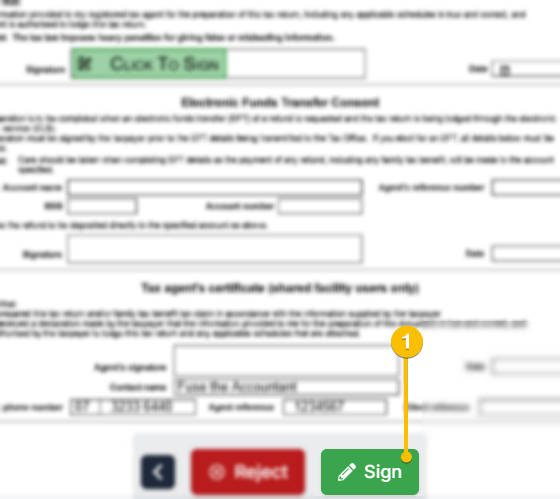
Select Sign to open the signature modal.
-
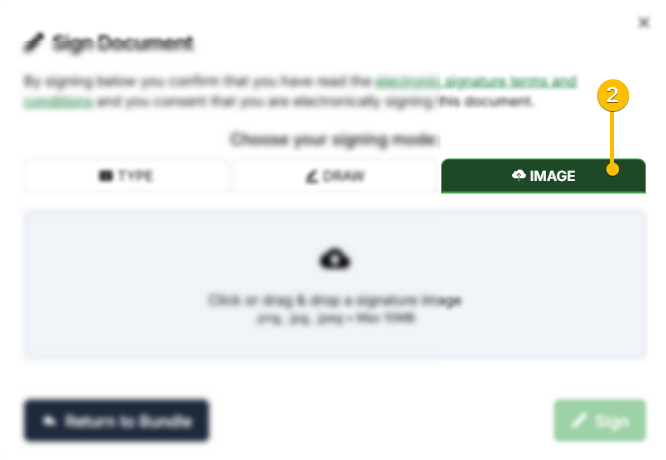
Click the Image tab.
-
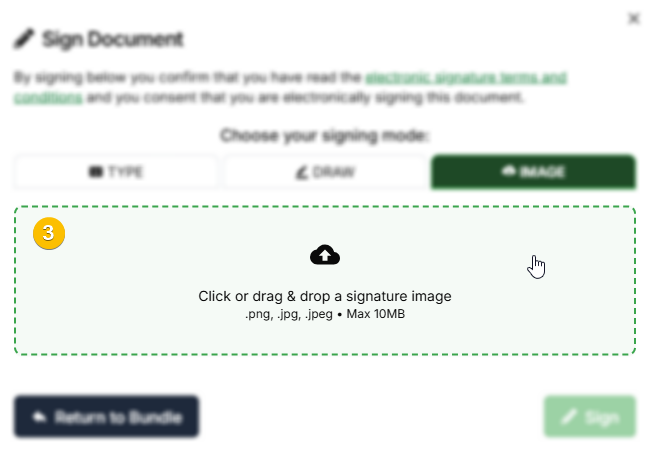
Click into the highlighted area to open file explorer and choose a saved image file to use as a signature. Alternatively, you can drag and drop an image file into this section.
-
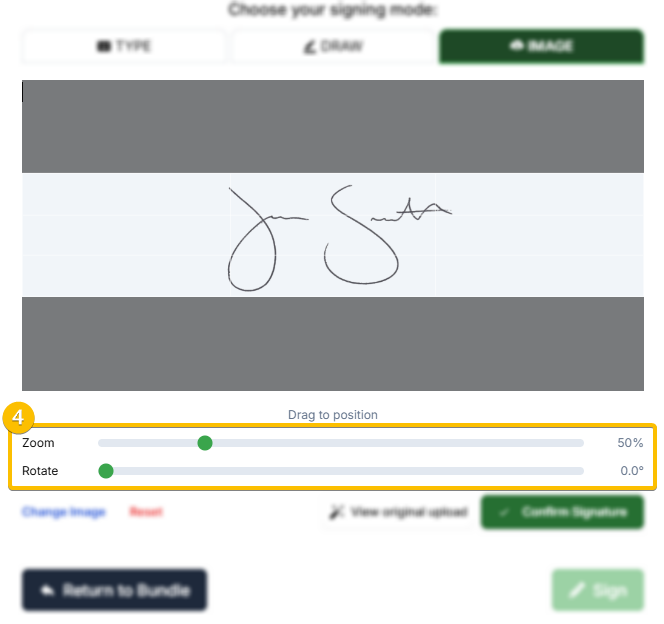
Position your signature image within the designated area. You can click and drag the image to position it, and use the Zoom and Rotate sliders to adjust as needed. Ensure the signature fills the light area with minimal whitespace. The grey area will be cropped from the image.
-
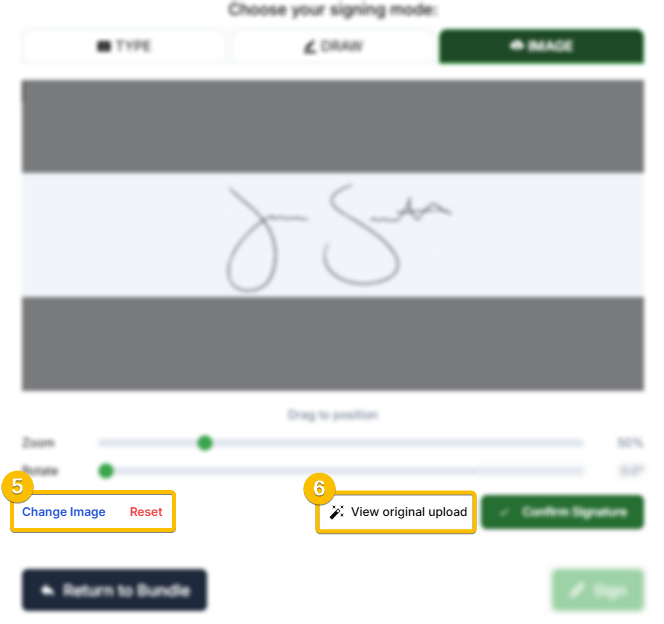
You can select Change image to select a new image to upload, or Reset to undo any changes you have made.
-
FuseSign will automatically adjust the brightness and contrast of the image for maximum clarity. You can click View original upload to revert these changes, if needed.
-
Once you are happy, select Confirm Signature to save the image.

-
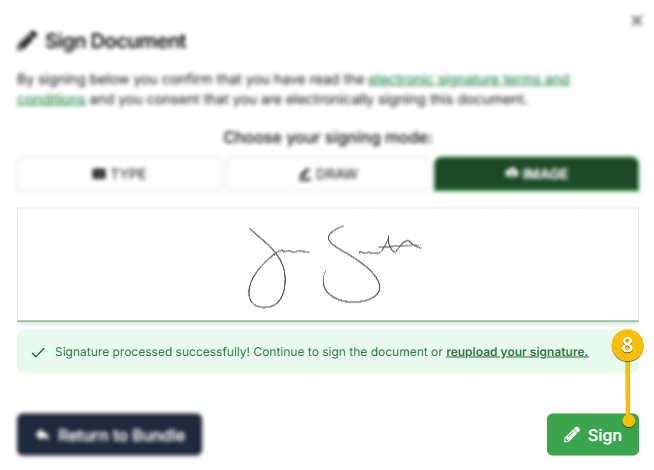
Finally, select Sign to submit your signature.
If you have any questions, please contact our support team via support@fuse.work