
The Clone Bundle feature allows you to easily duplicate existing bundles in FuseSign to streamline the digital signing process and save time when resending similar bundles. With this feature you can duplicate bundle details, recipients, documents, placeholders and automations of existing bundles, also providing the flexibility to modify the cloned bundle to meet your specific needs.
How to Clone a Bundle
-
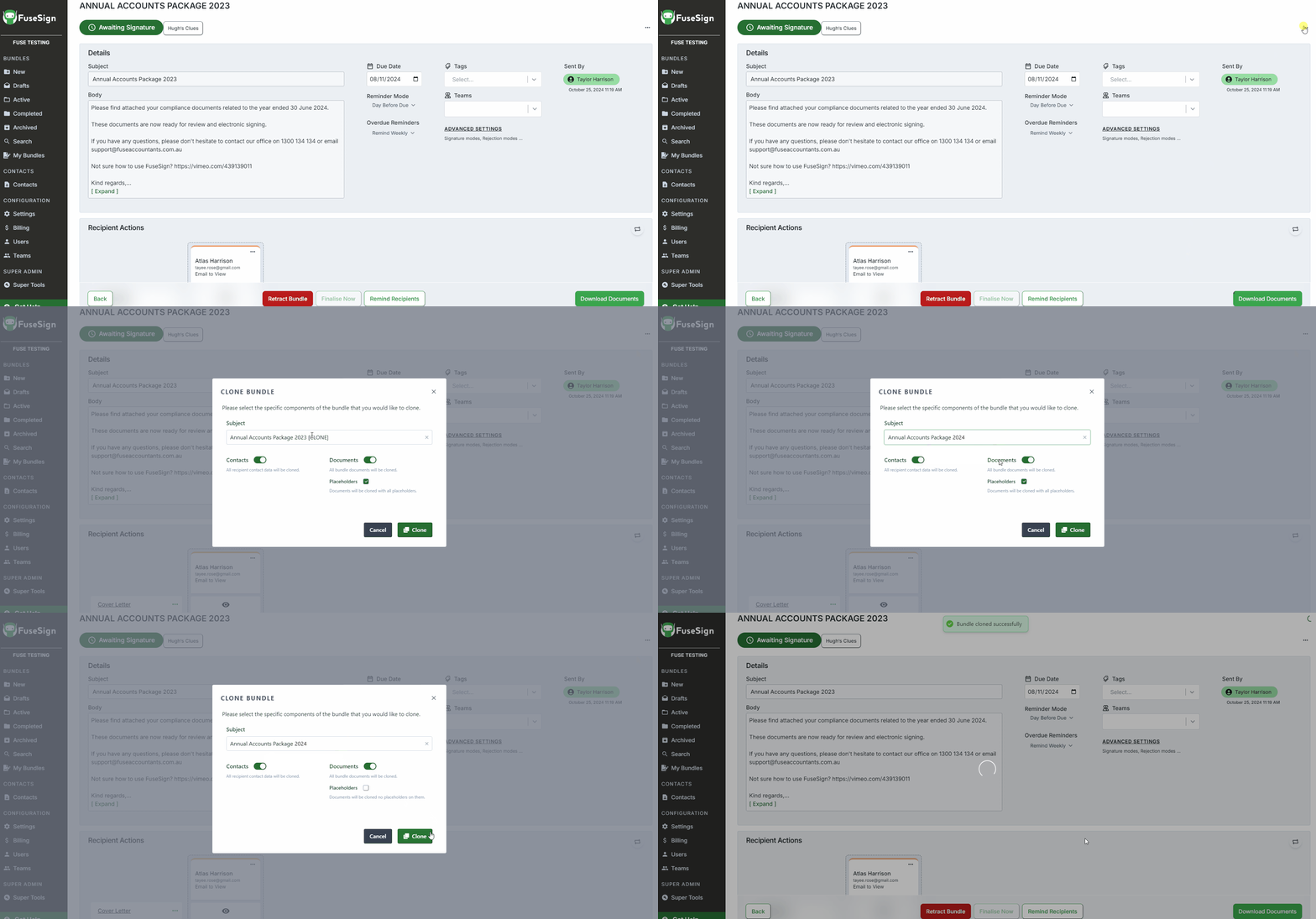
Navigate to the bundle you wish to clone. Click the extra actions menu (···) located in the top right corner of the bundle screen.
-
From the dropdown menu, select Clone Bundle.
-
In the Clone Bundle modal, you can configure which components will be duplicated, including:
-
Bundle Subject
-
Contacts
-
Documents
-
Placeholders
-
Automations
-
-
Select Clone to create your new bundle. The new bundle will be saved as a Draft, and you will immediately be redirected to it to review, edit and send.
What Gets Cloned?
When you clone a bundle, the following will be duplicated to the new bundle:
-
Subject
-
Body
-
Any settings that have been applied (including due date, automatic reminder settings, Team allocations, and tags)
-
Any recipient/group configurations (without contact information)
Optional: Contacts
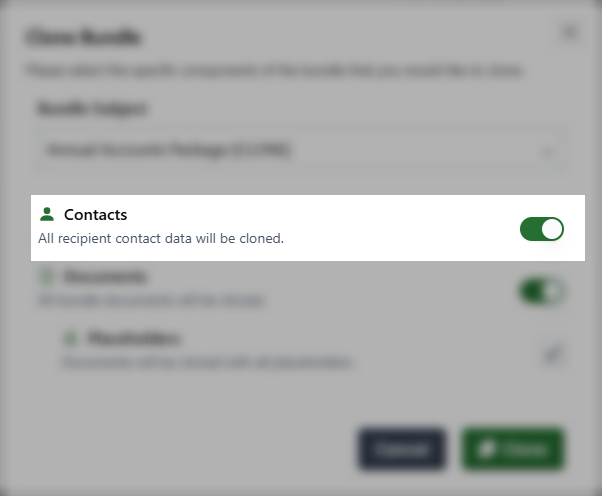
With Contacts enabled, the contact records assigned to the original bundle will also be cloned. In addition to contact information (such as email and phone number), this will also copy the contact’s verification mode on the original bundle, and well as SMS notification status.
If this option is disabled, the recipient configuration (eg. number of signers, signing groups and corresponding placeholders) will still be retained on the new bundle.
Optional: Documents
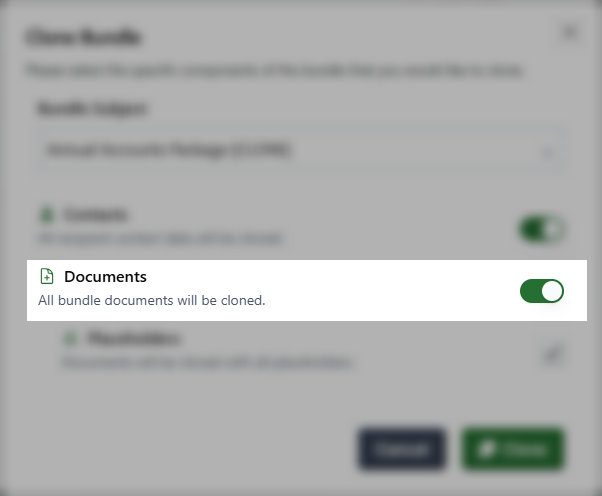
With this option enabled, all documents on the original bundle will be duplicated.
Cloning documents in a bundle will also allow you the option to retain the Placeholders and Automations associated with those documents.
Documents in bundles that have been fully Achieved cannot be cloned, as the documents are no longer stored on the platform.
Placeholders
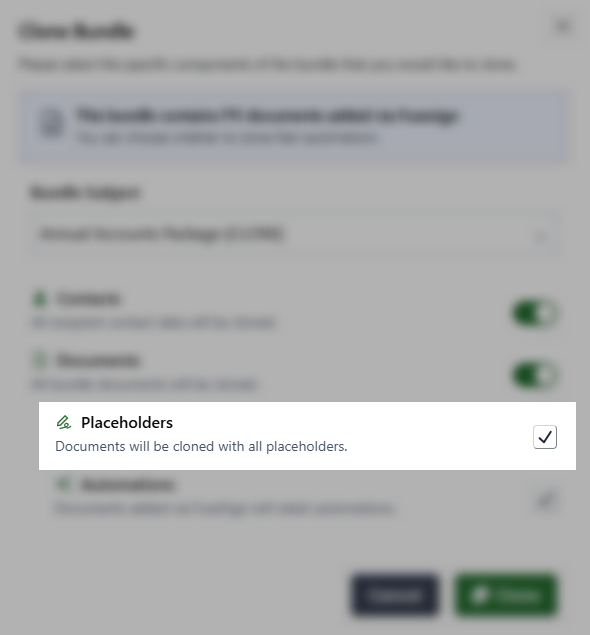
If documents are being cloned, you can also choose to copy any Placeholders that have been set up on these documents.
Cloning placeholders will copy their positions and
If you clone Placeholders but not Contacts, the placeholders will still be linked to the Recipient Card (eg. Recipient 1, Recipient 2, etc). Different Contacts can then be assigned to these recipient cards without having to re-apply the placeholders.
Automations
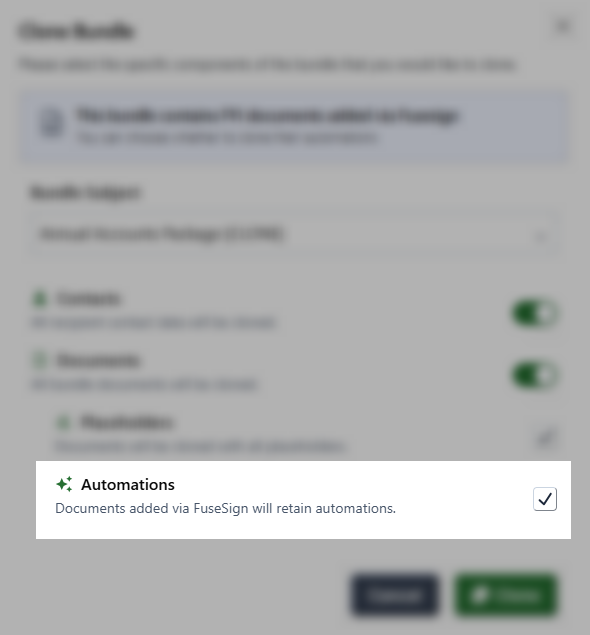
If you have documents in the bundle that have been added from an external platform via the document connector, you can choose to retain any Automations associated with these documents (including automatic filing).
These bundles can be identified by the following banner:

Cloned automations will allow the document to automatically file back to the original location.
Only documents added directly via FuseSign can retain document automations. Bundles created in external platforms such as FYIDocs or FuseDocs will loose any automations when the bundle is cloned.
If you are trying to clone an External bundle that has automations, you will not be able to retain these on the new cloned bundle. Documents will need to be re-added via FuseSign to enable any filing automations, or alternatively need to be saved manually.

If you have any questions, please contact our support team on support@fuse.work