
We are excited to announce the release of the anticipated Table View feature. This highly requested enhancement allows you save the configurations of your bundle tables for future use, helping you to streamline workflows in FuseSign.
You can save custom views for any bundle table on the platform, including Drafts, Active, Completed, Archived, and Search folders. These views are saved to your browser and device, allowing you to easily load them in future.
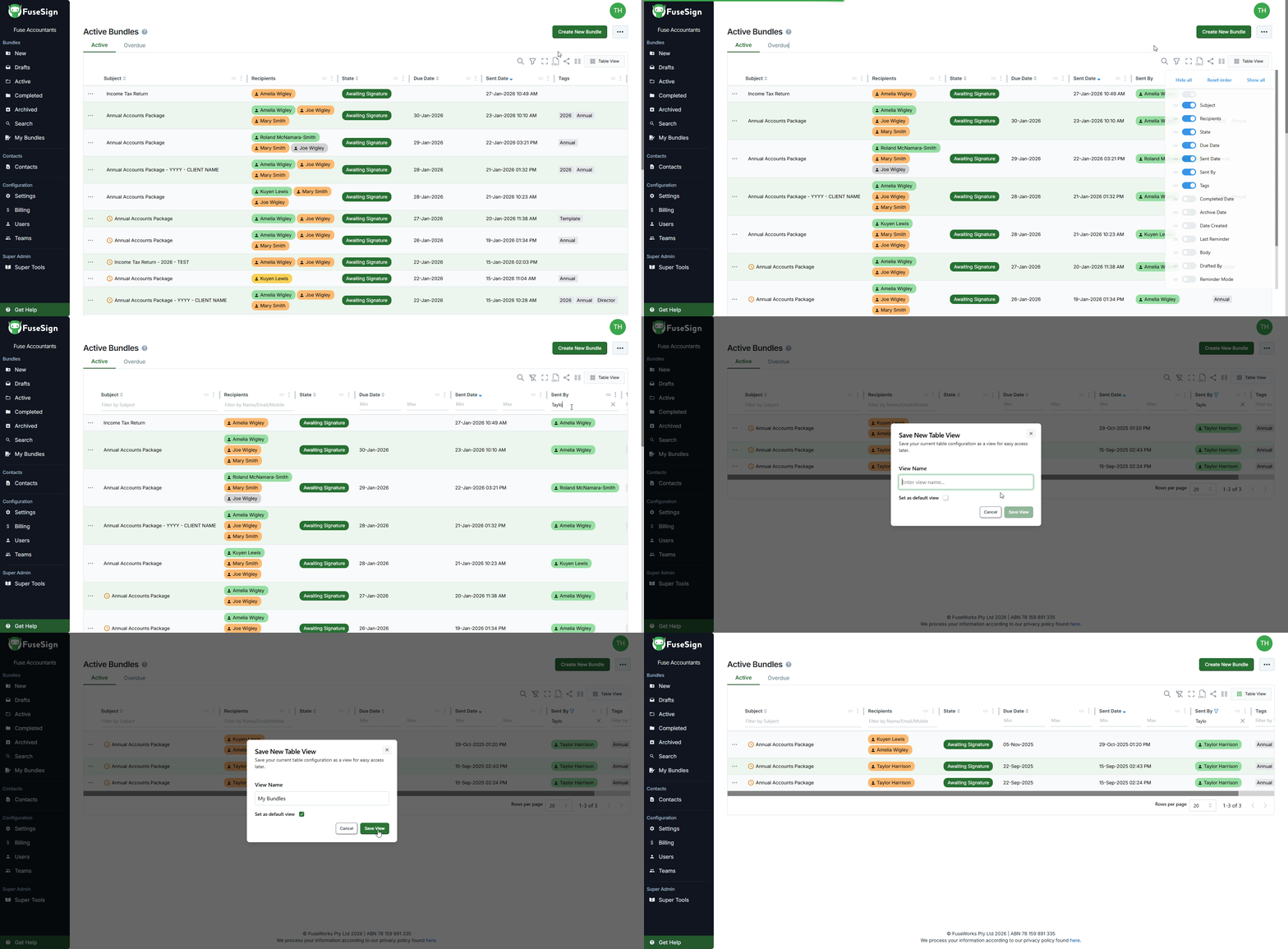
Setting Up Custom Table Views
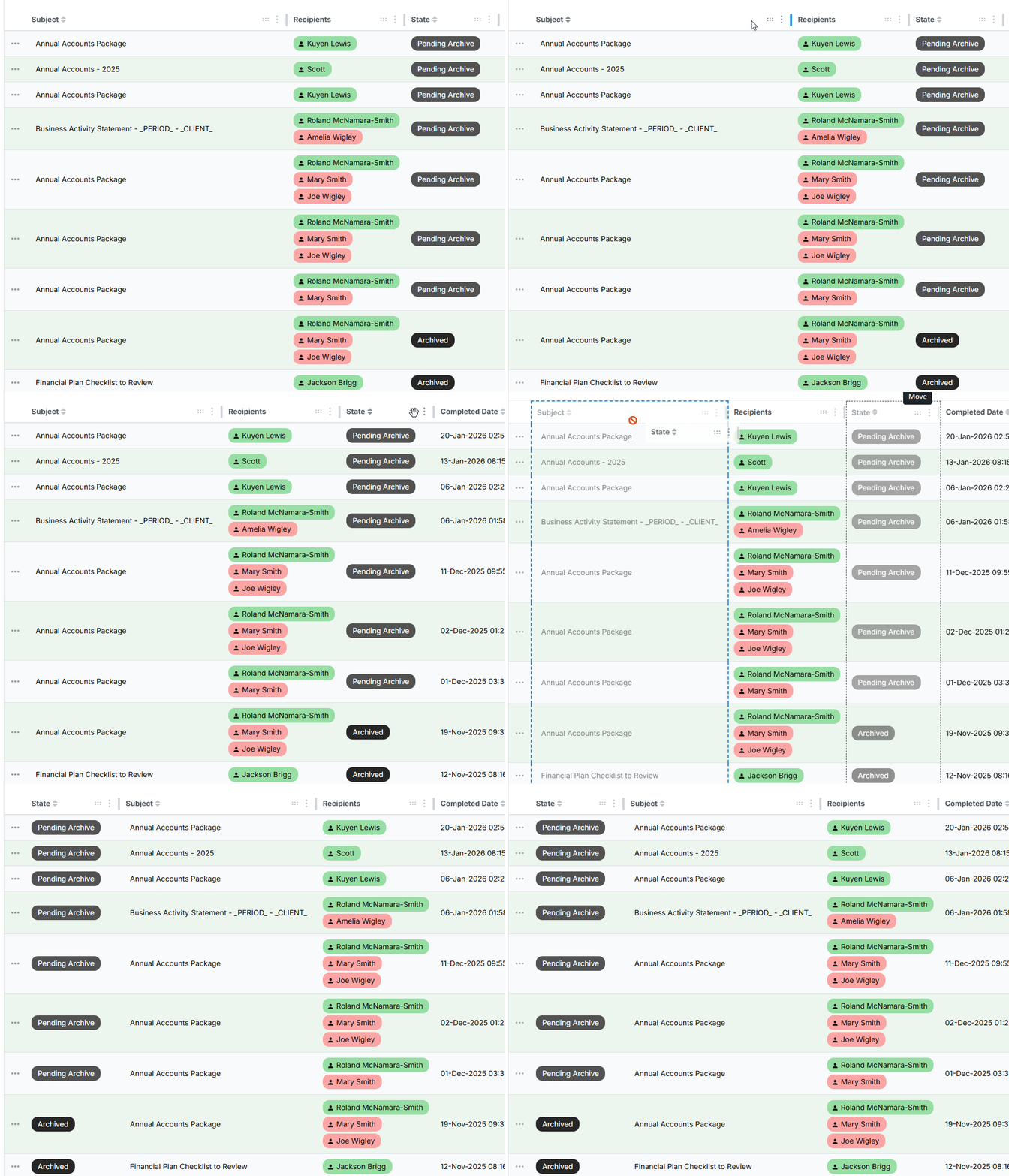
There are multiple ways to customise the view of each bundle table. These options can be used in any combination to create a view that best suits your needs:
-
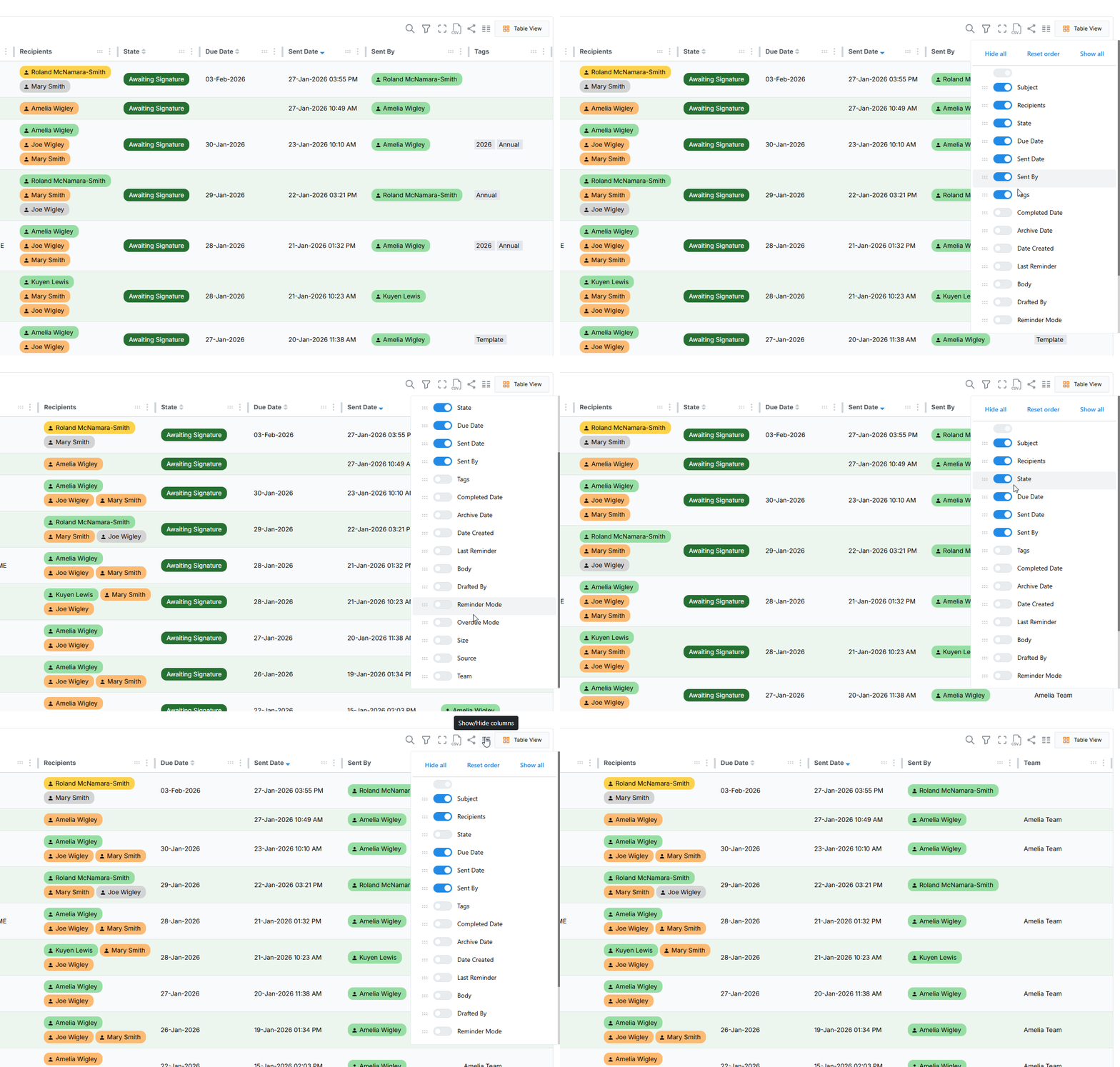
Show/Hide columns
Select the column icon
-
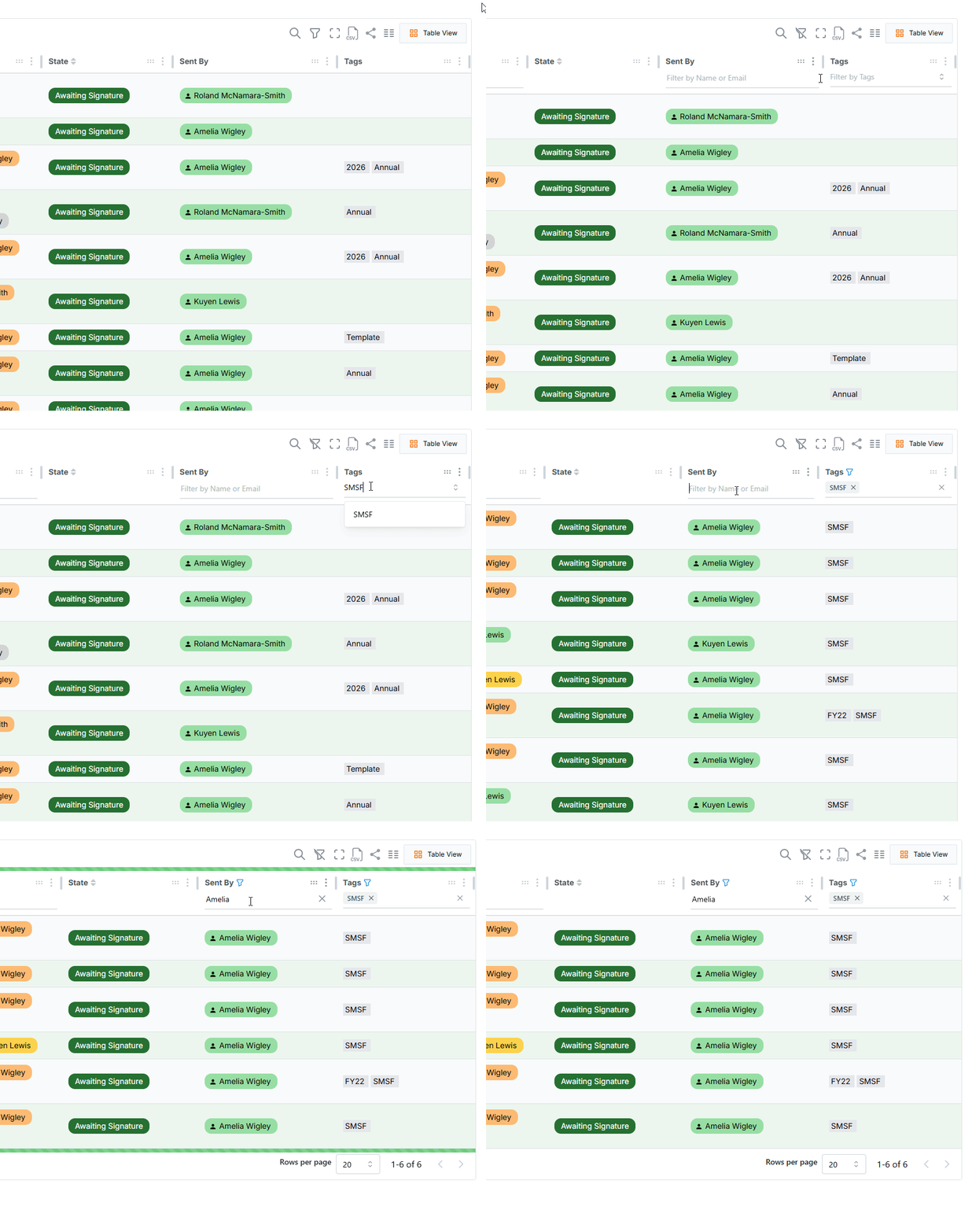
Apply filters to any existing columns
Select the filter icon
-
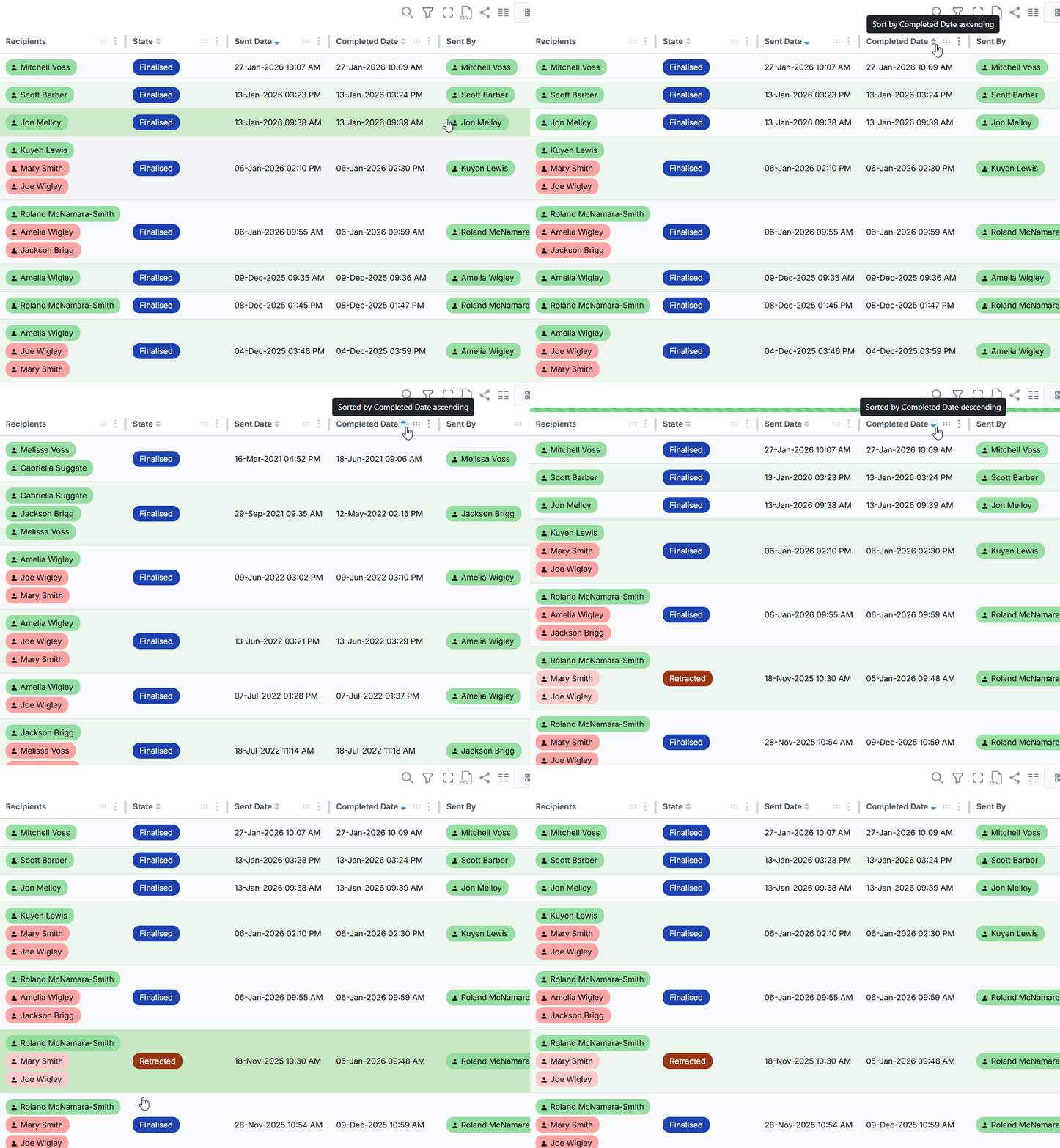
Sort bundles by existing columns
Select the arrow icons
-
Adjust the order and width of columns
Click and drag the grip icon

Saving a Table View
Once you have customised a table to your preference, you can save the configuration for future use.
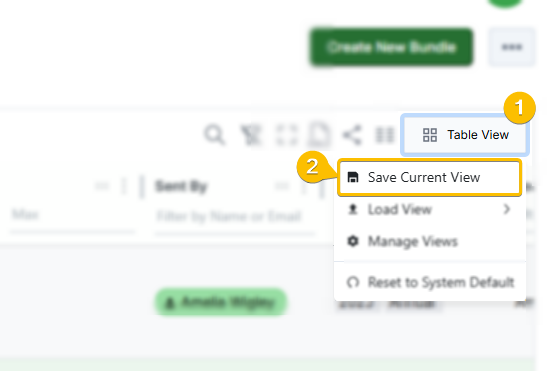
Step 1: Select Table View
Step 2: Select Save Current View
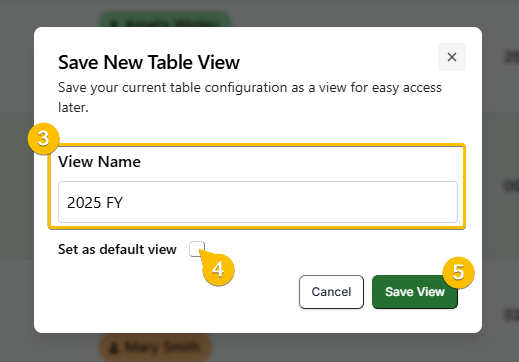
Step 3: Enter a unique View Name
Step 4 (optional): Select Set as default view, if desired, to make this configuration your default. This view will load automatically each time you access the page.
Step 5: Select Save View to confirm
You can save a maximum of five (5) views per bundle folder (Drafts, Active, Completed, Archived).
Loading a Table View
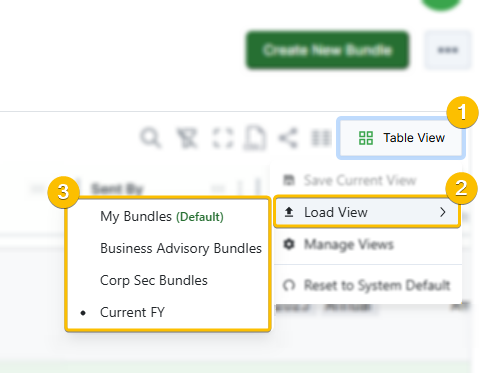
By default, your Default View is loaded when you open a FuseSign bundle table. You can also load a different view that has been previously saved.
Step 1: Select Table View
Step 2: Select Load View
Step 3: Select the view you wish to load
Managing Table Views
You can manage saved views via Table View > Manage Saved Views. From this menu, you can:
-
Use the radio buttons

-
Use the red trash icon

-
Use the green pencil icon

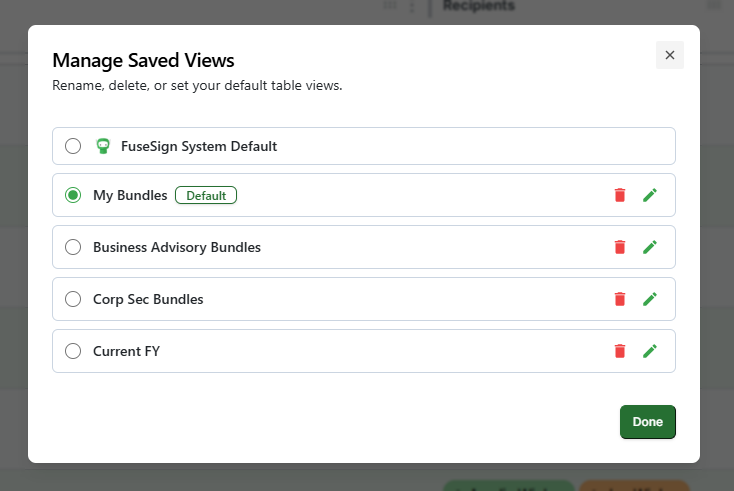
You can also select Reset to System Default from the Table View menu to temporarily reset the table to FuseSign’s system default view.
This reset applies only while you remain on the page and does not permanently change your default view.
Important Notes
-
Saved views are specific to each table. For example, a view saved in the Active folder will not be available in Drafts, Completed, or Archived folders.
-
Saved views are specific to your device and browser, not your FuseWorks account. Accessing FuseSign from a new device or browser will not retain previously saved views.
-
A maximum of 5 views can be saved per table. For example, 5 views for your ‘Active' folder table, 5 for your 'Completed’ folder table, and so forth.
-
Adjusting the amount of Rows per page (located at the bottom of each table) can also be saved per table view.
How to Share Table Views
Currently, it is not possible to set global table views that can be shared across all users in an organisation. This functionality is considered for future development, so please reach out to support@fuse.work to register interest.
In the meantime, you can share a custom table view with another user using the following workaround:
Step 1: Set or load a table view.
Step 2: Select the share icon 

Step 3: Have the recipient open the link and save the view via Table View > Save Current View.
Any URLs saved prior to 22/01/2026 as a workaround for this feature will no longer be valid
If you have any questions, please contact our support team via support@fuse.work